

Requirements
Before you start, you’ll need:- A Runpod account with an API key, and at least $5 in Runpod credits.
- One or more of the following AI coding tools installed on your local machine:
Available endpoints
Runpod provides two Public Endpoints that can be used to power AI coding tools:| Model | Base URL | Model ID | Context window |
|---|---|---|---|
| GPT OSS 120B | https://api.runpod.ai/v2/gpt-oss-120b/openai/v1 | openai/gpt-oss-120b | 131,072 tokens |
| Qwen3 32B AWQ | https://api.runpod.ai/v2/qwen3-32b-awq/openai/v1 | Qwen/Qwen3-32B-AWQ | 32,768 tokens |
Configure OpenCode
OpenCode supports multiple provider configurations, so you can set up both Runpod endpoints and switch between them.Create the config file
OpenCode looks for its config at
~/.config/opencode/opencode.json. Run this command to create the directory (if it doesn’t exist) and generate the config file:Set your API key
The
{env:RUNPOD_API_KEY} syntax in the config file tells OpenCode to read your API key from the RUNPOD_API_KEY environment variable.Run this command to set the environment variable, replacing rpa_YOUR_API_KEY with your actual API key:Test the configuration
Run this command to check that the configuration is working:You should see output similar to this:After confirming that the Runpod endpoints are listed, you can start OpenCode and try out the Runpod endpoints.Press Ctrl + p to open the command palette and select Switch model to select a Runpod endpoint.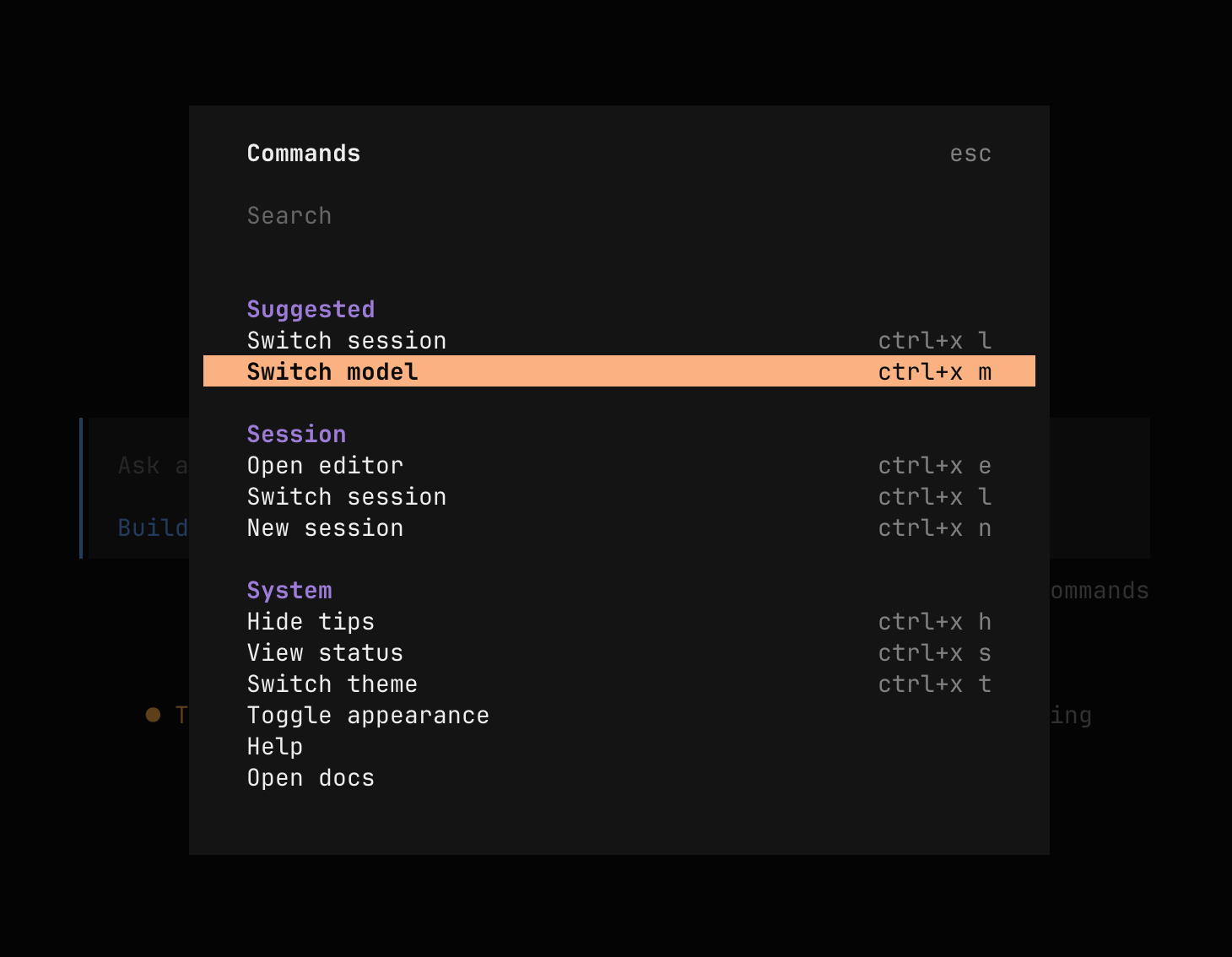
Configure Cursor
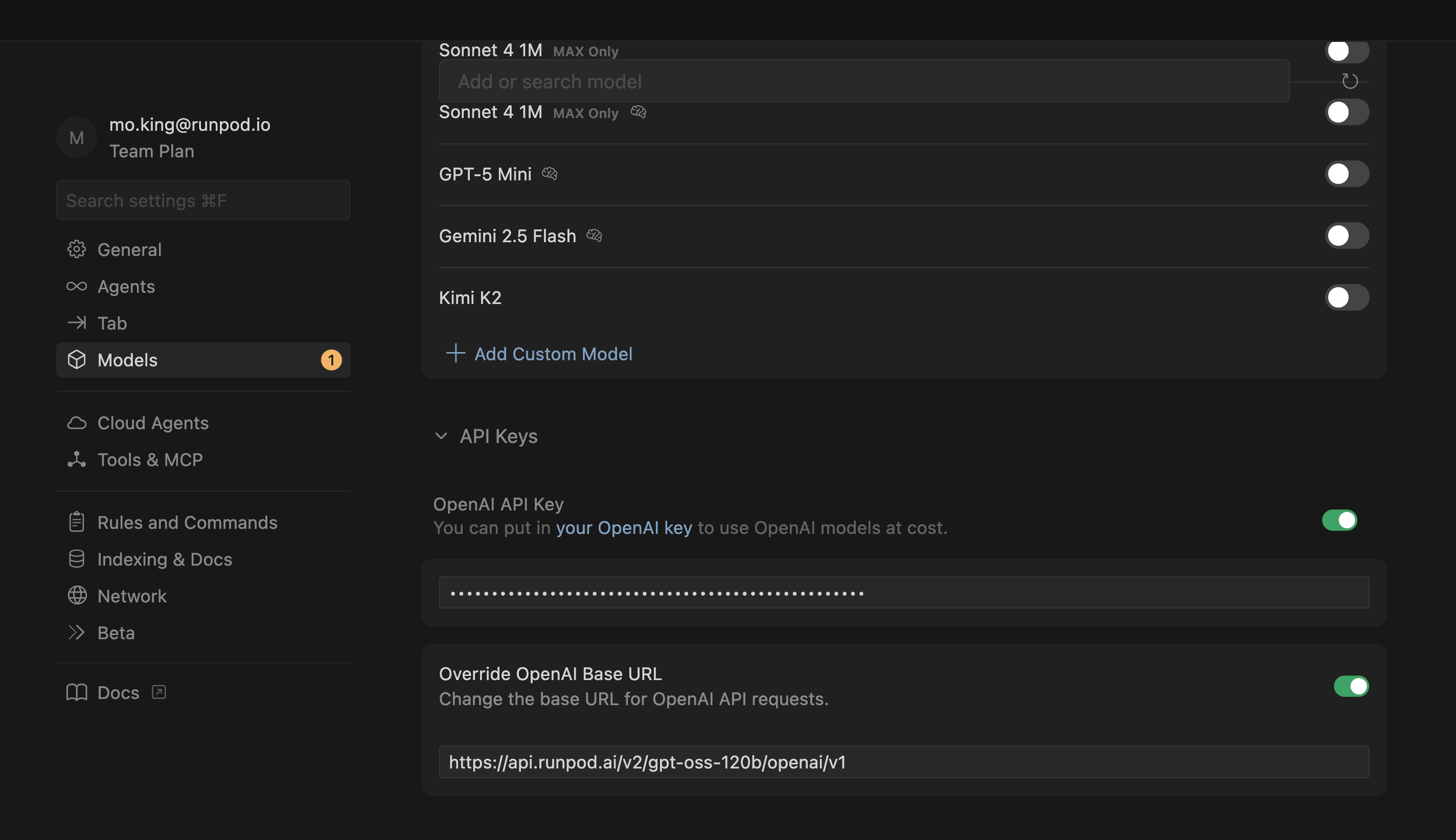
Cursor supports a single global OpenAI-compatible endpoint override, so you can only use one Runpod endpoint at a time.Open Cursor settings
Launch Cursor and press Shift + Cmd + J (macOS) or Shift + Ctrl + J (Windows/Linux) to open Settings.
Enter your API key
Find the OpenAI API Key field. Enable it, then enter your Runpod API key (
rpa_...).Add the model
Scroll up and click View All Models to see the list of available models.Click Add Custom Model and enter the model ID exactly as shown (case-sensitive):
Configure Cline
Cline is a VS Code extension with its own settings panel. Unlike Cursor, Cline supports multiple provider profiles, so you can configure both Runpod endpoints and switch between them.Open Cline settings
Click the Cline icon in the sidebar to open the Cline panel, then click the gear icon to open Settings.
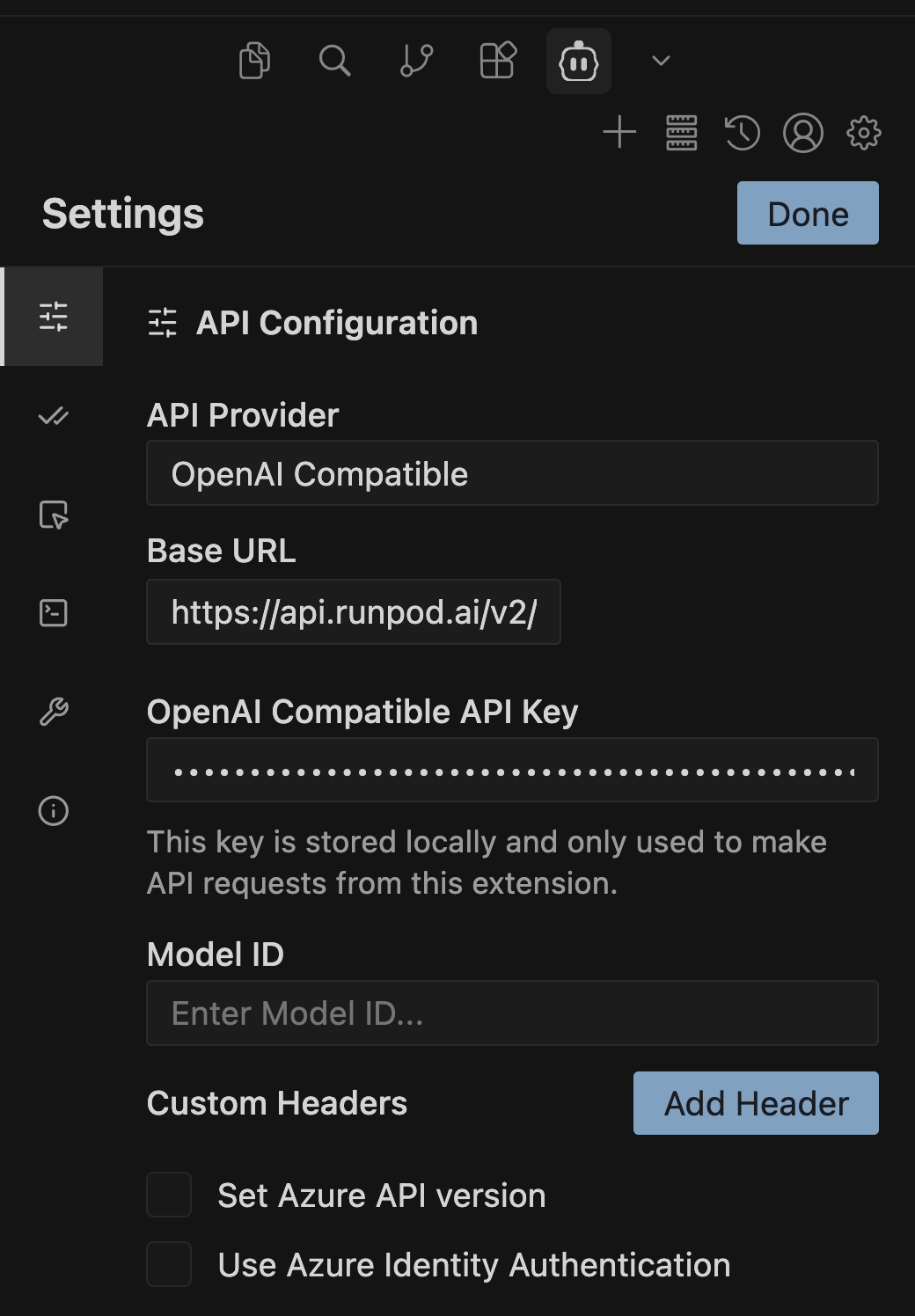
Enter the connection settings
Fill in the following fields:
| Setting | Value |
|---|---|
| Base URL | https://api.runpod.ai/v2/gpt-oss-120b/openai/v1 |
| API Key | rpa_YOUR_API_KEY |
| Model ID | openai/gpt-oss-120b |
| Setting | Value |
|---|---|
| Base URL | https://api.runpod.ai/v2/qwen3-32b-awq/openai/v1 |
| Model ID | Qwen/Qwen3-32B-AWQ |